

You should reduce STL mesh density before printing because oversized files slow down your slicing software, cause crashes, and create workflow bottlenecks without improving print quality. FDM printers can’t reproduce details smaller than 0.1-0.3mm, making ultra-fine mesh unnecessary. Files over 20MB greatly impact performance, while optimized meshes load faster and consume less memory. Proper mesh reduction maintains critical geometry with a 10-micron maximum deviation, ensuring your prints retain essential details while streamlining your entire workflow for better productivity.
Understanding STL Mesh Density and Its Impact on Print Quality
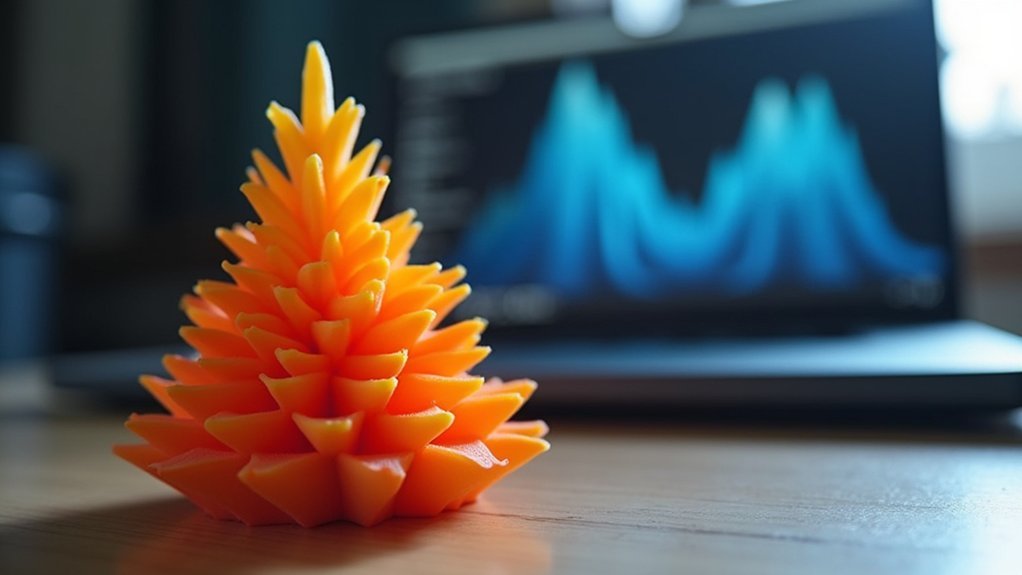
Mesh density determines how many triangular faces your STL file uses to define your 3D model’s surface geometry. When you increase mesh density, you’ll capture finer details but create large file sizes that burden your slicing software.
Your print quality suffers when mesh density is too low, resulting in pixelated prints with flat spots on curved surfaces that ruin both aesthetics and functionality.
Low mesh density creates pixelated prints with unsightly flat spots that compromise both visual appeal and functional performance.
Conversely, excessive mesh density doesn’t improve print quality beyond your printer’s resolution capabilities. It’ll slow down slicing, overwhelm processing power, and waste storage space.
You need to find the sweet spot where mesh density provides adequate detail for your printer’s capabilities without creating unnecessarily large files. This balance guarantees efficient slicing while maintaining the print quality your project requires.
Performance Issues Caused by Large STL Files in 3D Printing Workflow
When your STL files exceed 20 MB, you’ll encounter significant slowdowns that plague every stage of your 3D printing workflow. These performance issues stem from high mesh density creating unnecessarily complex files that overwhelm your slicing software.
| File Size | Processing Speed | Software Compatibility | Workflow Efficiency |
|---|---|---|---|
| Under 5 MB | Fast slicing | Excellent compatibility | Smooth workflow |
| 5-20 MB | Moderate delays | Good compatibility | Minor interruptions |
| 20-50 MB | Significant slowdowns | Occasional crashes | Frequent delays |
| Over 50 MB | Extremely slow | High crash risk | Severely disrupted |
Large STL files cause crashes, errors, and compatibility problems with many programs. Your slicing software struggles to process excessive detail that FDM printers can’t reproduce anyway, making high mesh density counterproductive for your printing goals.
How FDM Printer Resolution Limitations Affect Detail Requirements
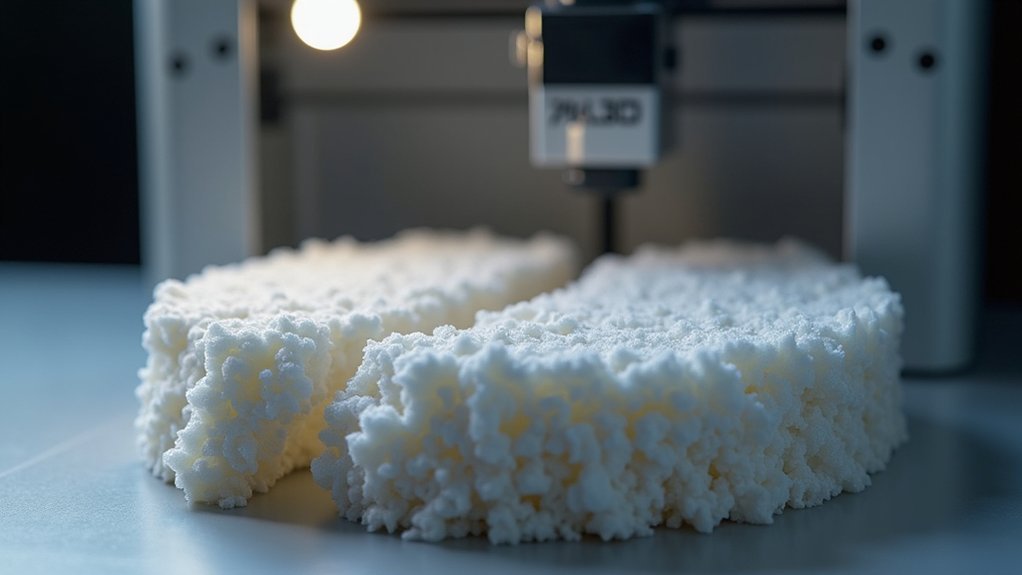
While your CAD software can export STL files with microscopic detail, FDM printers can’t reproduce features smaller than their physical layer resolution of 0.1-0.3 mm. This fundamental limitation means you’re wasting computational resources on mesh density that won’t improve your final print quality.
Understanding FDM printer constraints helps you optimize your workflow:
- Layer-by-layer construction eliminates the need for ultra-fine surface details that resin printers require.
- 0.1-0.3 mm resolution limits make submicron mesh triangles completely unnecessary.
- Reduced file processing occurs when you match mesh density to actual printer capabilities.
- 10-micron maximum deviation provides sufficient detail while maintaining reasonable file sizes.
- Slicing software performance improves dramatically with appropriately sized STL files.
Match your mesh density to what FDM printers can actually reproduce.
File Size Optimization Benefits for Slicing Software Performance
Because slicing software must process every triangle in your STL file, oversized meshes create performance bottlenecks that’ll slow your entire workflow. When your STL files exceed 20 MB, you’ll notice sluggish performance as your software struggles with the computational load.
File size optimization through mesh density reduction dramatically improves processing speeds—reducing a 40 MB file to 1.8 MB creates immediate performance gains.
Your slicing software will load files faster, consume less memory, and respond more quickly during preparation. Most software packages benefit from streamlined meshes since they don’t need to process excessive geometric detail that won’t appear in your final print.
You’ll also avoid crashes and freezing issues common with oversized files, creating a smoother workflow from file import to print preparation.
Identifying When Your STL Files Need Mesh Reduction
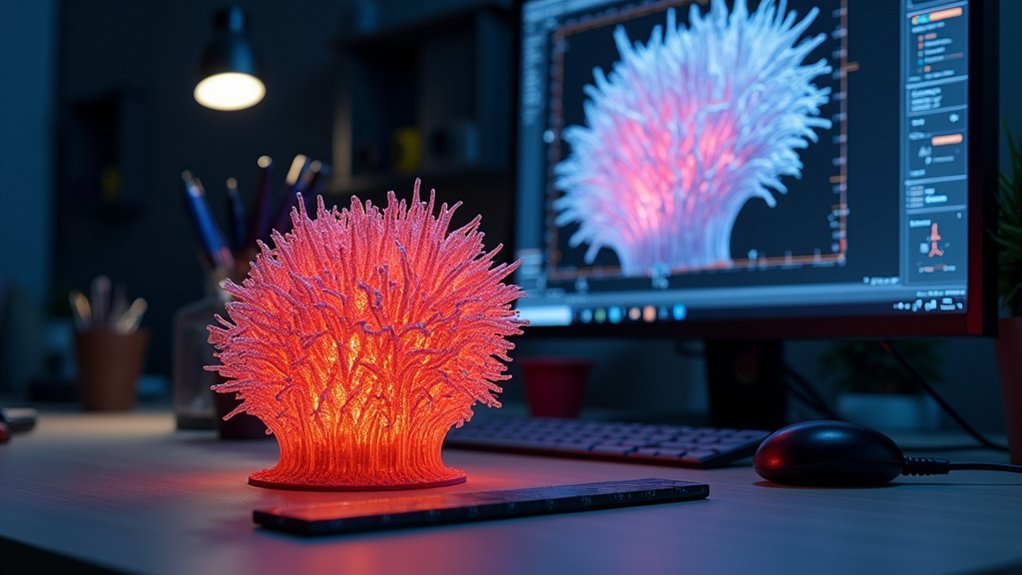
How do you know if your STL file requires mesh reduction? Several clear indicators signal when you’ll need to optimize your mesh before printing.
Large file sizes exceeding 20 MB slow down slicing software and hinder processing performance. You’ll notice sluggish response times when loading or manipulating these oversized files.
STL files over 20 MB create performance bottlenecks, causing your slicing software to respond slowly during file operations.
Visual inspection using tools like Eiger software reveals problematic areas where mesh reduction’s needed.
Key warning signs include:
- Excessive file sizes that cause software performance issues during slicing
- Non-manifold geometry creating printing complications and errors
- Flat spots on curved surfaces indicating poor mesh quality
- Incomplete surfaces that confuse slicing algorithms
- Faceted appearances on what should be smooth, rounded features
When you spot these issues, adjusting max deviation settings in mesh reduction tools will considerably lower file size while preserving essential detail.
Meshlab Vs Meshmixer: Choosing the Right Tool for File Reduction
When you’re choosing between Meshlab and Meshmixer for STL file reduction, you’ll notice significant differences in their software interfaces and approaches to mesh simplification.
Meshlab offers a more technical interface with precise control over reduction parameters like “Quadratic Edge Collapse Decimation,” while Meshmixer provides a user-friendly environment with streamlined options such as “standard bass reduction” and “max deviation” settings.
Your choice between these tools will depend on whether you need detailed mesh control or prefer simplified editing features for your specific 3D printing workflow.
Software Interface Comparison
While both Meshlab and Meshmixer excel at reducing STL mesh density, they offer distinctly different approaches that’ll determine which tool best fits your workflow.
Meshlab provides technical precision through a filter-based system, requiring you to navigate multiple steps for mesh simplification. Your original file undergoes systematic processing that gives you granular control over every aspect.
However, this complexity means the file is actually more challenging to manipulate quickly.
Meshmixer offers intuitive direct manipulation within its interface, featuring user-friendly options like “standard bass reduction” and “max deviation” settings. You’ll find it follows best practices for quick edits and efficient file size reduction, making it ideal when you need immediate results without technical complexity.
- Meshlab uses filter-based processing for technical control
- Meshmixer provides direct model manipulation interface
- Meshlab requires navigation through multiple processing steps
- Meshmixer offers intuitive reduction settings and controls
- Choice depends on precision needs versus ease-of-use preference
Reduction Method Differences
Beyond interface preferences, the actual reduction methods these tools employ reveal fundamental differences in how they process your mesh data.
Meshlab’s Quadratic Edge Collapse Decimation filter uses mathematical algorithms to analyze edge relationships, making intelligent decisions about which vertices to remove while preserving geometric integrity. This approach works exceptionally well when you’re dealing with models containing hundreds of thousands of triangles that need precise reduction.
Meshmixer takes a different route, using deviation-based algorithms that prioritize maintaining surface accuracy within your specified tolerance levels.
If you’re new users to mesh editing, Meshmixer’s straightforward deviation settings let you quickly achieve results without understanding complex mathematical principles. When I’m going for rapid prototyping workflows, Meshmixer’s intuitive controls often prove more efficient than Meshlab’s technical precision.
Setting Optimal Chordal and Angular Tolerance for Mesh Decimation
Since mesh decimation directly impacts both file performance and print quality, you’ll need to establish precise chordal and angular tolerance values that balance detail retention with processing efficiency.
Setting your chordal tolerance at 0.1 mm guarantees global dimensional accuracy while maintaining manageable file sizes for efficient 3D printing processing. You should adjust angular tolerance to 1 degree to refine mesh resolution, effectively balancing detail with performance.
Reducing minimum triangle side length to 0.1 mm helps maintain necessary detail while preventing excessive file sizes that hinder slicer performance.
- Set chordal tolerance to 0.1 mm for ideal dimensional accuracy
- Adjust angular tolerance to 1 degree for balanced mesh resolution
- Maintain minimum triangle side length at 0.1 mm for detail preservation
- Fine-tune parameters to create well-formed STL meshes avoiding flat spots
- Review tolerance settings regularly based on specific model requirements
Maintaining Critical Model Details During File Size Reduction
You’ll need to employ specific detail preservation techniques that protect your model’s essential features while aggressively reducing file size.
Start by setting your max deviation to around 0.01 millimeters for FDM printers, which maintains critical geometry without bloating the mesh.
Focus on preventing feature loss by using visual inspection tools to compare your original and simplified models, ensuring intricate details that define your print’s quality remain intact.
Detail Preservation Techniques
When you’re reducing STL mesh density, preserving critical model details becomes your primary challenge in maintaining print quality while achieving manageable file sizes.
You’ll need strategic approaches that balance efficiency with precision. The Quadratic Edge Collapse Decimation filter in Meshlab offers sophisticated geometry simplification without compromising essential features.
Set your maximum deviation to 0.01 millimeters to guarantee adequate detail retention for FDM printing requirements.
Always perform visual verification after simplification to confirm your model’s integrity remains intact.
- Use Quadratic Edge Collapse Decimation filter for intelligent mesh reduction
- Maintain 10-micron maximum deviation settings during simplification
- Integrate CAD/CAM workflows for enhanced processing efficiency
- Employ 3D scanning technologies to preserve surface characteristics
- Conduct thorough visual inspections after each reduction process
Feature Loss Prevention
Building on smart geometry reduction methods, feature loss prevention requires targeted strategies that protect your model’s most important elements during file size optimization. You’ll need to establish clear deviation parameters before simplification begins. Set maximum deviation to 0.01 millimeters for FDM printers, ensuring critical details survive the reduction process.
| Prevention Strategy | Target Area | Quality Check |
|---|---|---|
| Visual Comparison | Complete Model | Side-by-side Review |
| Deviation Control | Edge Definition | 10 Micron Limit |
| Manifold Verification | Surface Integrity | Geometry Analysis |
| Detail Prioritization | Key Features | Selective Preservation |
Regular inspection during simplification prevents irreversible feature loss. Compare your original and reduced models continuously, checking for non-manifold geometry that can compromise surface quality. Focus on preserving functional elements while allowing non-critical areas to accept higher reduction levels.
Export Settings That Balance Quality and Processing Speed
Since achieving the perfect balance between mesh quality and processing speed starts with your export settings, you’ll want to prioritize binary format over ASCII when saving STL files.
This format delivers smaller file sizes while maintaining quality, making your workflow more efficient.
Configure your tolerance settings strategically to enhance performance:
- Set chordal tolerance to 0.1 mm for ideal mesh detail without excessive resolution
- Use angular tolerance at 1 degree to maintain curved surface accuracy
- Apply minimum triangle side length of 0.1 mm to prevent software performance issues
- Adjust tolerance settings when file sizes exceed 20 MB to balance quality and speed
- Research your specific CAD software’s guidelines since different programs require unique export configurations
Always verify your STL quality using visual inspection tools like Eiger before proceeding to printing.
Measuring Success: Before and After File Size Comparison
You’ll want to document your original file size before applying any mesh reduction techniques to establish a clear baseline for comparison.
After implementing the density reduction settings, record the new file size and calculate the percentage decrease to quantify your optimization results.
This data becomes essential for measuring processing speed improvements and determining whether you’ve achieved the right balance between file efficiency and print quality.
Original File Size Analysis
Massive STL files often create bottlenecks in your 3D printing workflow, with original files frequently exceeding 20 megabytes and slowing down slicing software performance.
When you examine your original file sizes, you’ll discover how excessive mesh density impacts your entire process.
Your original STL files typically exhibit these characteristics:
- File sizes ranging from 20-40+ megabytes for moderately complex models
- Millions of triangular faces creating unnecessary computational overhead
- Extended slicing times that can stretch from minutes to hours
- Memory consumption issues causing software crashes or freezing
- Excessive geometric detail that FDM printers can’t reproduce effectively
This analysis reveals why file size reduction becomes essential.
You’re not just dealing with storage concerns—you’re managing processing efficiency, software stability, and print preparation time that directly affects your productivity.
Post-Reduction Size Metrics
After implementing mesh reduction techniques, your file size metrics reveal substantial improvements that transform your 3D printing workflow efficiency.
Your original 40-megabyte model now weighs just 1.8 megabytes—that’s a 95.5% reduction while maintaining essential features. You’ll experience considerably faster processing speeds and quicker slicing times that streamline your entire workflow.
The remarkable part? You’ve achieved this massive size reduction while keeping max deviation at 0.01 millimeters, which perfectly meets FDM printer requirements.
Your reduced mesh preserves critical details without sacrificing print quality. These metrics demonstrate how strategic mesh density adjustments optimize performance without compromising your model’s integrity.
The before-and-after comparison proves you can profoundly improve file handling efficiency while maintaining the precision your projects demand.
Performance Improvement Quantification
Quantifying your mesh reduction performance requires concrete measurements that demonstrate real-world improvements in your 3D printing workflow.
You’ll see dramatic changes when you compare your original files to enhanced versions. The example reduction from 40 megabytes to 1.8 megabytes shows what’s achievable through proper mesh optimization. Your slicing software will respond faster, and you’ll notice smoother preparation times for time-sensitive projects.
- File size reduction: Achieve up to 95% smaller files while maintaining print quality
- Processing speed: Experience faster slicing times with reduced computational load
- Max deviation adjustment: Fine-tune from 0.18mm to 0.01mm for ideal balance
- Workflow efficiency: Eliminate lag and crashes during file processing
- Print success rates: Improve reliability with FDM-optimized mesh density
Workflow Integration for Consistent Mesh Optimization Results
When you integrate mesh optimization tools directly into your 3D printing workflow, you’ll achieve more consistent results across all your projects. You’ll want to establish clear parameters for mesh reduction that maintain quality while improving performance.
| Tool | Primary Function | File Size Target |
|---|---|---|
| Meshlab | Quadratic Edge Collapse Decimation | Under 20 MB |
| Meshmixer | Complex model simplification | Under 20 MB |
| Built-in CAD tools | Basic mesh reduction | Under 20 MB |
| Slicer preprocessing | Final optimization | Under 20 MB |
| Custom scripts | Automated workflows | Under 20 MB |
You’ll need collaboration tools for sharing optimized STL files across teams, ensuring everyone uses properly reduced meshes. Regularly revising your workflow parameters helps you balance mesh density with detail preservation, creating a repeatable process that consistently delivers high-quality prints with manageable file sizes.
Frequently Asked Questions
How to Optimize STL for Printing?
Set your CAD’s chordal tolerance to 0.1mm and angular tolerance to 1 degree. Keep files under 20MB, inspect for manifold geometry, and use Meshlab’s decimation tools to reduce mesh density while preserving detail.
How to Reduce STL File Size Without Losing Quality?
You can reduce STL file size by using Meshlab’s Quadratic Edge Collapse Decimation with 0.01mm max deviation, exporting in binary format, and adjusting chordal tolerance to 0.1mm while preserving critical details.
How to Prepare Mesh for 3D Printing?
You’ll need to guarantee your mesh is manifold with edges shared by exactly two faces. Check for non-manifold geometry, optimize density for quality versus file size, and verify STL integrity before printing.
How to Increase STL Quality?
You’ll increase STL quality by using reliable CAD software with 0.1mm chordal tolerance, exporting in binary format, checking for manifold geometry, and balancing mesh density to capture details without oversizing files.


Leave a Reply