
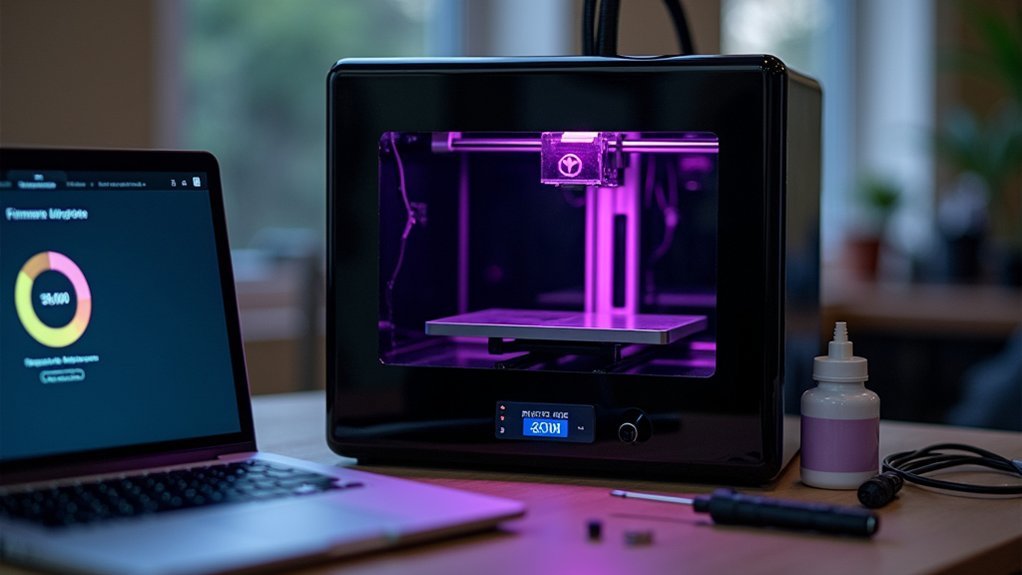
You’ll need to identify your printer’s exact model and hardware version, then download the compatible firmware from the manufacturer’s official website. Next, format a MicroSD card to FAT32, copy the firmware files onto it, insert it into your powered-off printer, and turn the printer on to access the firmware upgrade option in system settings. Finally, verify the update completed successfully by checking the firmware version matches the latest release and running a test print. The steps below provide detailed guidance for each phase.
Preparing Your Printer and Downloading the Correct Firmware Files
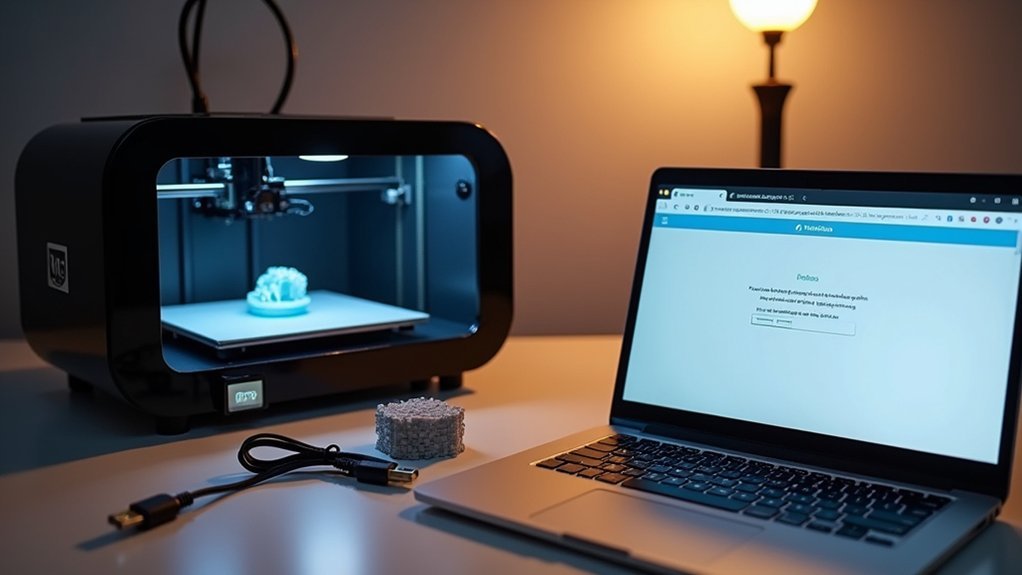
Before you begin any firmware update, you must precisely identify your resin printer’s model and hardware version to avoid compatibility issues that could permanently damage your device.
Check your printer’s mainboard and CPU version, then cross-reference the PCB numbers printed on the board with firmware download recommendations.
Verify your mainboard PCB numbers against manufacturer compatibility charts to ensure proper firmware matching and prevent hardware damage.
Visit your manufacturer’s official website to download the latest compatible firmware version. You’ll typically receive a zipped package containing machine firmware, UI files, and documentation with extensions like .bin, .CBD, or .SH4.
Extract all files and verify they match the update instructions exactly.
Review the release notes carefully to confirm this firmware version addresses your desired improvements and maintains stability for your specific hardware revision. Ensure your MicroSD card is formatted to FAT32 before copying any firmware files to prevent installation failures.
Installing the Firmware Update Using Storage Device Method
With your firmware files downloaded and verified, you’re ready to install the update using the storage device method, which remains the most reliable approach for most resin printer models.
First, turn off your printer completely and insert the prepared storage device into the designated port. Power on the printer and navigate to system settings through the main menu.
Locate the firmware upgrade option and select it to scan your storage device. Confirm the detected file matches your intended version, then initiate the update process.
Monitor the progress bar while keeping your printer powered on throughout installation. The process typically takes several minutes. After the installation completes, your printer will automatically reboot to finalize the firmware update.
Once complete, verify the updated firmware version in system settings and carefully remove your storage device.
Verifying Successful Update and Resolving Common Issues

How can you tell if your firmware update installed correctly? Check your printer’s companion app – it should display “It is already the latest version” when you attempt another update.
Your printer will automatically restart and show “Available” status after a successful update.
Verify the firmware version matches the latest release. Run a test print to confirm everything’s working properly, and check for error messages on both the printer panel and app.
If issues occur, don’t panic. Download firmware only from official sources and verify it matches your exact printer model.
Your printer might appear offline during updates – wait for the restart to complete. Back up current settings before updating, and contact manufacturer support if problems persist. Firmware upgrades often enhance software compatibility with the latest slicing tools and programs.
Perform calibrations after updating to maintain print quality.
Frequently Asked Questions
How Often Should I Update My Resin Printer Firmware?
You should check for firmware updates every few months or when experiencing printer issues. There’s no fixed schedule, so monitor your manufacturer’s website regularly and update when new versions offer bug fixes or improvements.
Can I Downgrade to an Older Firmware Version if Needed?
You can often downgrade resin printer firmware using USB drives or manufacturer apps, though it’s usually unsupported. Check your printer’s manual for specific procedures and always backup current settings first.
Will Updating Firmware Void My Printer’s Warranty?
Updating your printer’s firmware won’t void your warranty if you’re using official manufacturer updates. However, installing third-party or modified firmware will likely void your warranty coverage completely.
Do I Need to Update Firmware for Third-Party Resins?
You don’t need to update firmware specifically for third-party resins. Most printers work fine with adjusted print settings instead. However, firmware updates can improve stability and print quality for all resin types.
Should I Update Firmware Before or After Major Printing Projects?
You should update firmware after major printing projects, not before. Pre-project updates risk introducing bugs that’ll disrupt your workflow. Schedule updates during downtime to avoid compromising critical prints.


Leave a Reply