
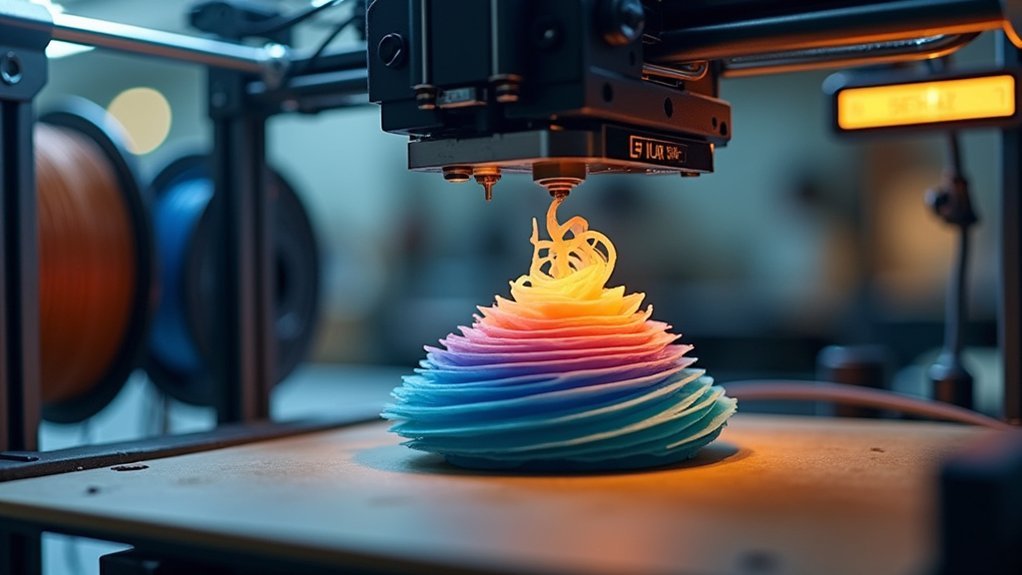
You can balance 3D print speed and quality by optimizing three key settings: layer height, nozzle diameter, and infill density. Use 0.2mm layer height with a 0.4mm nozzle for most projects, adjusting to thicker layers and larger nozzles for faster functional parts. Reduce infill to 10-20% for decorative items while maintaining 30-40% for structural components. Fine-tune perimeter speeds to 30-50 mm/s and boost infill speeds to 80-100 mm/s. The techniques below will transform your printing efficiency.
Understanding the Speed-Quality Trade-off in 3D Printing
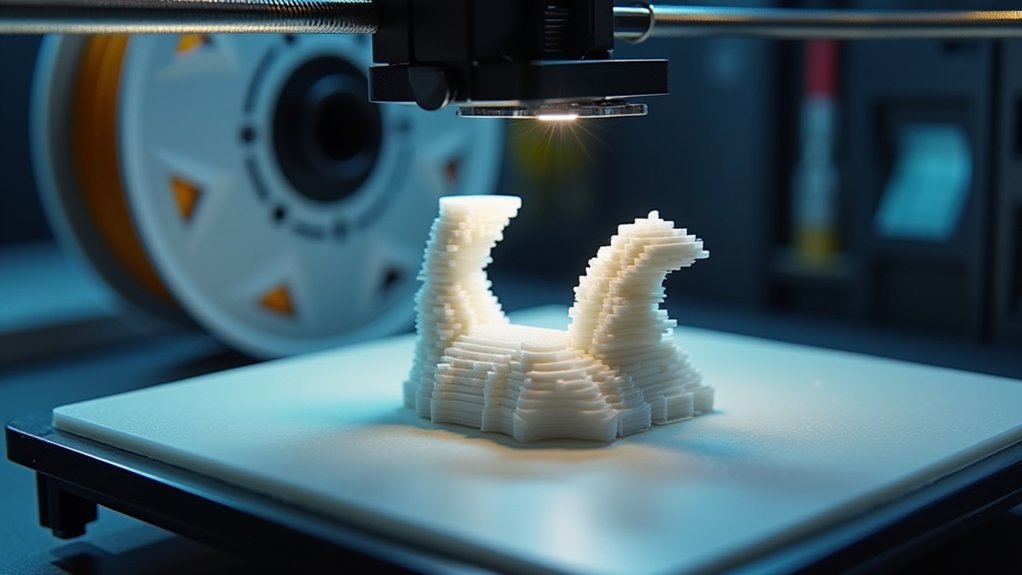
While faster 3D printing promises quicker results, you’ll inevitably face a fundamental trade-off between speed and quality that affects every aspect of your prints.
Speed and quality in 3D printing exist in constant tension—faster prints inevitably sacrifice precision and structural integrity.
When you increase print speed, you’ll often see reduced dimensional accuracy and weakened parts. Common defects like ringing and ghosting emerge from vibrations at higher speeds, compromising your print quality.
Your material choice considerably impacts this balance. PLA tolerates faster speeds without major quality loss, while flexible materials like TPU demand slower printing for accuracy.
You can optimize infill density to enhance speed without severely compromising strength—lower densities enable quicker prints while maintaining functionality.
Hardware upgrades offer solutions too. Larger nozzle diameter and high-flow hotends improve extrusion rates, letting you achieve faster speeds while preserving acceptable quality standards.
Key Factors That Impact Both Print Speed and Quality
Five essential factors directly influence both your print speed and final quality, each requiring careful calibration to achieve ideal results.
Layer height creates your most fundamental trade-off. Thicker layers accelerate printing but reduce surface detail, while thinner layers enhance precision at the cost of time.
Your nozzle size determines material flow rates—larger diameters extrude faster but sacrifice fine details and smooth finishes.
Infill density and patterns affect both speed and strength. Lower densities save time and material, though complex patterns may slow printing while improving structural integrity.
Print temperature optimization proves vital; higher temps boost flow rates and speed, but excessive heat causes stringing and warping defects.
Finally, travel speed settings during non-printing movements can greatly reduce overall print time without affecting layer quality.
Optimal Layer Height Settings for Speed and Detail Balance
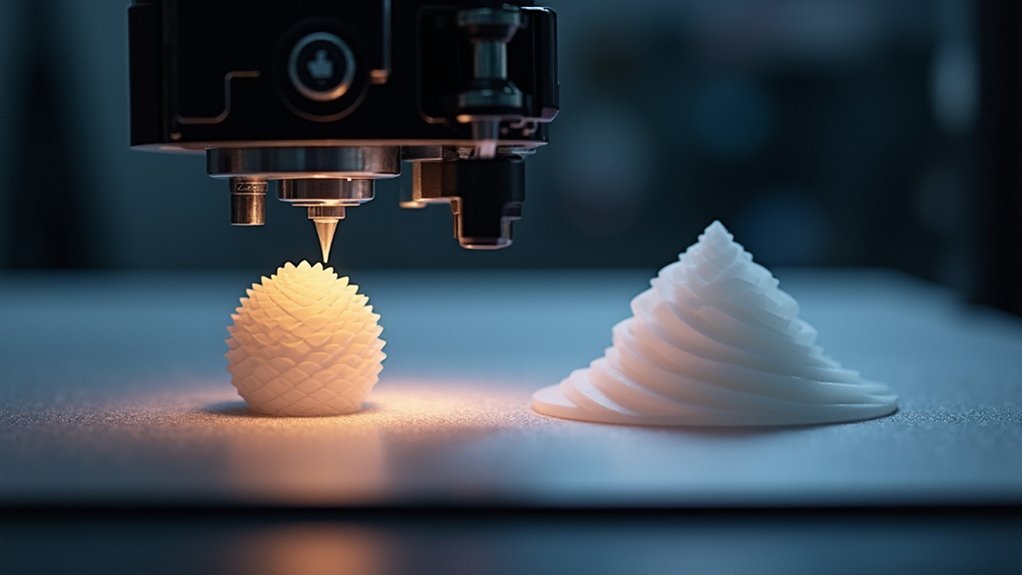
Since layer height directly controls how many passes your printer makes, it’s your most powerful lever for balancing speed against detail.
Your layer height setting determines whether you’ll wait hours for precision or quickly produce functional prototypes.
Here’s your strategic approach to layer height enhancement:
- Use 0.2mm for general prints – This standard setting delivers the best balance between print speed and print quality for most projects.
- Go thicker (0.3mm) for rapid prototyping – Noticeably reduces print time while maintaining acceptable detail for larger functional parts.
- Drop below 0.1mm only for fine details – Reserve ultra-thin layers for miniatures or jewelry where surface finish matters most.
- Match nozzle size to layer goals – Pair 0.6mm+ nozzles with thicker layers for superior speed without quality compromise.
Choosing the Right Nozzle Diameter for Your Project
After optimizing your layer height, your nozzle diameter becomes the second critical factor in controlling the speed-quality equation.
The standard 0.4mm nozzle balances detail and print speed effectively for most projects. However, upgrading to larger nozzle sizes like 0.6mm or 0.8mm can boost your print speed by up to 40% through increased material flow rates.
You’ll need to pair larger nozzles with thicker layers to maintain print quality while accommodating the higher material extrusion rate. This combination works excellently for larger parts without intricate details.
Remember there’s always a trade-off: while bigger nozzles dramatically reduce print time, they compromise precision for detailed models and fine features.
Choose your nozzle diameter based on your project’s specific requirements.
Infill Density and Pattern Optimization Strategies
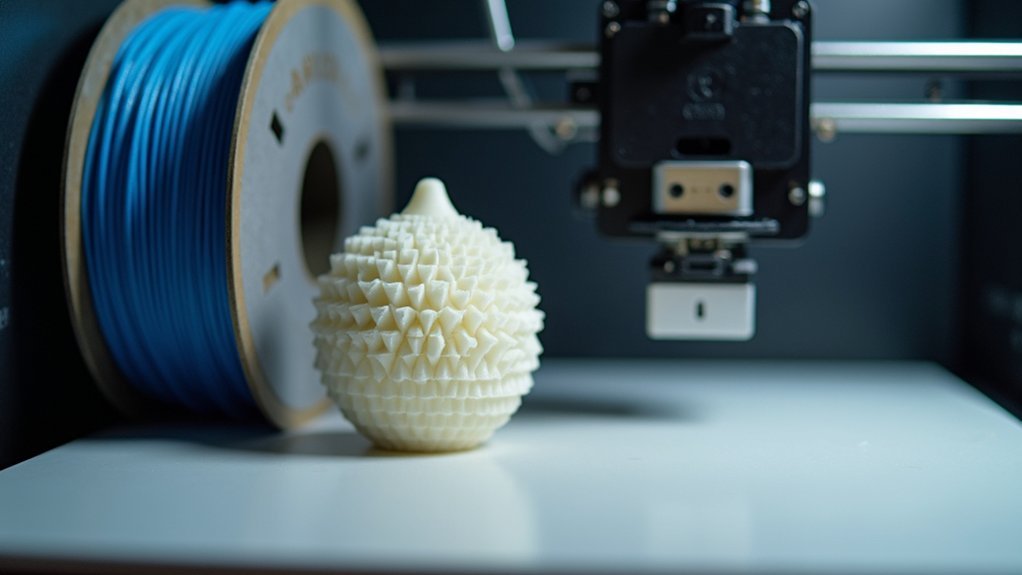
When you’re tweaking infill settings, the density percentage you choose directly impacts both your print speed and structural integrity.
Your pattern selection—whether you opt for simple lines or complex honeycomb—significantly affects how fast your printhead moves and completes each layer.
You’ll need to carefully weigh these speed-quality trade-offs since reducing infill density and simplifying patterns can cut print times dramatically while potentially compromising strength.
Optimal Infill Percentages
While most beginners default to high infill percentages thinking more equals better, you’ll achieve excellent results by selecting infill density based on your part’s specific functional requirements rather than arbitrary numbers.
Higher infill density directly impacts material use and print speed, so you shouldn’t waste time and filament on unnecessary density.
Consider these ideal infill percentages for different applications:
- Decorative items (10-15%) – Minimal structural needs, prioritize print speed
- Functional prototypes (20-30%) – Balance strength with reasonable material use
- Mechanical parts (40-50%) – Higher stress requirements demand increased density
- Lightning infill strategy (5-10%) – Advanced infill patterns maintain strength while dramatically reducing print time
Match your infill density to purpose, not preconceptions.
Pattern Selection Impact
Four primary factors determine how infill patterns affect your print’s speed-to-quality ratio: pattern complexity, directional strength requirements, material flow consistency, and toolpath efficiency.
When you’re selecting an infill pattern, simpler options like lines or grids greatly outperform complex alternatives such as honeycomb or cubic designs regarding print speed. These straightforward patterns require less intricate print head movements, allowing your printer to maintain consistent speeds throughout the printing process.
Complex patterns force your extruder to make frequent direction changes and intricate movements, which can reduce overall efficiency.
If structural requirements aren’t critical for your project, choosing linear or grid patterns will dramatically decrease print times while consuming less material and reducing mechanical stress on your printer’s components.
Speed-Quality Trade-offs
Since infill density directly controls both material usage and print duration, you’ll find that reducing density below 50% delivers substantial time savings without sacrificing structural integrity for decorative or non-functional parts.
Understanding these trade-offs helps you make informed decisions about print speed enhancement.
Key strategies for balancing speed and quality:
- Use lightning infill (5-10%) for lightweight applications requiring minimal strength
- Choose simple patterns like lines or grids instead of complex honeycomb designs to reduce print head movements
- Adjust wall thickness to 0.8-1.6mm (3-4 lines) for faster printing on non-critical items
- Evaluate strength requirements against time constraints to determine ideal infill density and pattern complexity
These adjustments create meaningful trade-offs between print speed and final part performance.
Print Speed Settings for Different Print Zones
You’ll achieve ideal results by adjusting print speeds for specific zones rather than using a single speed throughout your entire print.
Your outer walls and perimeters need slower speeds around 30-50 mm/s to maintain surface quality, while infill can run much faster at 60-100 mm/s without affecting visible areas.
Support structures require their own speed considerations since they’re temporary elements that don’t need the same precision as your final part’s surfaces.
Perimeter and Outer Walls
Precision becomes paramount when configuring speed settings for your print’s perimeter and outer walls.
These visible surfaces directly impact your final part’s appearance and dimensional accuracy. You’ll want to reduce your print speed to 30-50 mm/s for outer walls to achieve superior surface quality and layer adhesion.
Here’s how to optimize your perimeter settings:
- Reduce perimeter count from 3 to 2 walls when strength requirements allow, greatly boosting print speed.
- Set outer wall speeds between 30-50 mm/s for smooth, professional-looking surfaces.
- Use slower initial layer speeds at 15-20 mm/s to establish proper bed adhesion.
- Implement variable speeds with slower outer walls and faster infill to balance quality with efficiency.
This approach guarantees your visible surfaces maintain excellent quality while maximizing overall printing efficiency.
Infill Speed Optimization
While outer walls demand careful attention to speed, your infill presents the perfect opportunity to considerably accelerate printing without sacrificing quality.
You can safely boost infill speed to 80-100 mm/s for non-structural components, dramatically cutting print time while maintaining part integrity.
Configure your slicer to use faster-printing patterns like Lines or Grid instead of complex Honeycomb designs for maximum efficiency.
Reducing infill density to 10-20% will further reduce print time while providing adequate support for most functional parts.
The key lies in setting distinct printing speed zones—combine your accelerated infill speed with slower perimeter speeds in your slicer settings.
This approach lets you achieve the perfect balance between reduced print time and excellent print quality.
Support Structure Speeds
Support structures represent another strategic zone where you can considerably increase printing speeds without compromising your final model’s quality. Since these elements are disposable and removed after printing, you can push their speeds considerably higher than your main model settings.
This approach will reduce overall print time while maintaining the structural integrity needed for proper overhang support.
Here’s how to optimize support structure speeds for maximum printing efficiency:
- Set support speeds to 60-80 mm/s – much faster than detailed feature speeds
- Use 10-20% infill density for supports instead of higher percentages
- Configure separate speed settings in your slicing software for support structures
- Orient your model strategically to minimize support material requirements and maximize speed gains
Temperature Control for Fast Yet Accurate Prints
Because temperature directly affects material flow and layer bonding, you’ll need to master thermal management to achieve both speed and quality in your 3D prints.
Proper temperature control guarantees ideal extrusion rates while maintaining print quality at higher printing speeds.
Start with your material’s recommended range—PLA typically prints best between 180-220°C. Higher temperatures improve flow rates, allowing faster speeds, but don’t exceed material limits or you’ll face stringing and oozing.
Balance temperature with cooling settings; adequate cooling solidifies layers quickly, reducing warping at higher speeds.
Adjust retraction settings based on temperature changes—lower temperatures with faster speeds often require increased retraction speeds.
Regularly calibrate your hotend and monitor temperature fluctuations to maintain consistent extrusion throughout your prints.
Travel Speed and Retraction Settings Tuning
Travel speed optimization works hand-in-hand with temperature management to maximize your printing efficiency without sacrificing quality.
By adjusting travel speeds between 100-150 mm/s, you’ll reduce non-deposition movement time while maintaining excellent print quality. However, retraction settings require careful calibration to prevent stringing and oozing during these rapid movements.
Here’s how to optimize both parameters effectively:
- Set retraction distance between 1-6 mm depending on your filament type and extruder setup.
- Configure retraction speed at 30-60 mm/s to avoid clogs while preventing oozing.
- Balance higher speeds with vibration control to prevent ringing and layer adhesion issues.
- Customize settings per filament – TPU needs slower retraction speeds than PLA to avoid jams.
Fine-tuning these elements eliminates defects while maximizing efficiency.
Acceleration and Jerk Settings for Smooth Motion
While travel speed controls how fast your print head moves between points, acceleration and jerk settings determine how smoothly it reaches those speeds.
Acceleration controls how quickly your printer reaches maximum speed, with typical values ranging from 500 to 3000 mm/s². Jerk settings define sudden speed changes, commonly set between 5 to 20 mm/s, preventing artifacts like ringing or ghosting.
Setting these values too high causes layer misalignment and poor adhesion, while values too low unnecessarily increase print time. You’ll achieve ideal print quality by fine-tuning both settings, especially for detailed prints requiring precision.
Test different configurations since each printer and material combination needs unique settings. Proper acceleration and jerk settings minimize vibrations during shifts, enhancing layer adhesion and surface finish.
Material-Specific Speed and Quality Considerations
Different 3D printing materials demand unique speed settings to achieve ideal quality results.
Your material choice directly impacts optimal print speed and overall print quality, requiring careful adjustment of settings for each filament type.
Material selection determines print speed optimization and final output quality, demanding precise setting adjustments for different filament types.
- PLA – You can push speeds up to 70 mm/s while maintaining excellent quality due to its forgiving nature and minimal warping tendencies.
- ABS – Keep your speeds between 40-60 mm/s, as this material’s higher heat requirements and cooling sensitivity affect layer adhesion at faster speeds.
- PETG – Stick to moderate speeds of 40-60 mm/s to guarantee proper layer bonding and accommodate its specific cooling needs.
- TPU – Reduce speeds to 20-30 mm/s since flexible materials require slower extrusion to prevent feeding issues and maintain dimensional accuracy.
Testing and Calibration Methods for Optimal Settings
You’ll need to run systematic tests to find the sweet spot between speed and quality for your specific printer and materials.
Start with speed test prints that progressively increase printing velocity, then conduct temperature tower calibration to identify ideal heat settings for each filament type.
Follow up with layer adhesion testing to confirm your chosen parameters maintain structural integrity throughout the entire print.
Speed Test Prints
Before you can achieve the perfect balance between speed and quality, conducting systematic speed test prints serves as your foundation for optimization.
You’ll need to evaluate how your overall printing speed affects print quality through controlled experiments.
Start with standardized test models like 3DBenchy or calibration cubes to maintain consistency across different speed variations.
Begin at your baseline speed (typically 50 mm/s for PLA) and increase incrementally by 10 mm/s intervals.
Here’s your systematic approach:
- Test geometric shapes – Use cubes and calibration towers to assess detail retention
- Monitor defects – Watch for under-extrusion and layer adhesion problems
- Include complex features – Test overhangs, bridges, and intricate details
- Document print settings – Record layer height, nozzle size, and flow rate for repeatability
Temperature Tower Calibration
While speed test prints reveal mechanical limitations, temperature tower calibration pinpoints the thermal sweet spot where your filament performs at its finest at higher speeds.
You’ll print a vertical tower with multiple sections at different temperatures, typically in 5°C increments. This reveals how temperature variations affect layer adhesion, stringing, and surface finish.
Monitor each section for under-extrusion, over-extrusion, or warping signs. The ideal extrusion temperature balances print speed with print quality—too hot causes stringing and oozing, while too cold creates weak layer bonds and poor adhesion.
Once you’ve identified your temperature tower calibration results, document the settings in your slicer software.
This guarantees consistent, repeatable results across different prints while enabling faster speeds without quality compromises.
Layer Adhesion Testing
After establishing your ideal temperature range, layer adhesion testing determines how well each printed layer bonds to create structurally sound parts at higher speeds.
You’ll need to systematically test different variables that directly impact how layers stick together while maintaining acceptable print quality.
Here’s your testing approach:
- Print sample parts with varying layer heights – Test different thicknesses to find the best balance between speed and adhesion quality.
- Experiment with print speeds on identical samples – Evaluate speeds around 50-60 mm/s for PLA to assess adhesion impact.
- Test varying infill density levels (10%, 20%, 50%) – Find minimum density that maintains strength while maximizing speed.
- Use tensile test models – Quantitatively measure sample strength under different settings to inform your adjustments.
Hardware Upgrades That Enhance Speed Without Sacrificing Quality
When you’re ready to push your 3D printer beyond its current limitations, strategic hardware upgrades can release considerably faster print speeds without the typical trade-offs in quality.
Installing a high-flow hotend dramatically increases material flow rates, preventing clogs while maintaining smooth extrusion at higher temperatures needed for fast printing speeds.
You’ll gain better filament control by switching to a direct drive extruder, which improves retraction and handling of flexible materials.
Implementing a CoreXY motion system reduces inertia and eliminates ghosting at higher print speeds.
Upgrading to high-quality stepper motors with improved torque guarantees consistent layer adhesion during rapid movements.
Finally, advanced firmware like Klipper optimizes motion algorithms, enabling you to achieve exceptional print quality even at accelerated speeds.
Advanced Slicing Techniques for Balanced Performance
You can achieve superior speed-quality balance by implementing adaptive layer height settings that automatically adjust thickness based on your model’s geometry and detail requirements.
Variable speed zone control lets you designate different print speeds for specific areas of your model, ensuring critical sections receive proper attention while non-critical zones print faster.
Smart support structure optimization reduces material usage and post-processing time by generating supports only where absolutely necessary and using minimal contact points.
Adaptive Layer Height Settings
While traditional slicing approaches lock you into a single layer height throughout your entire print, adaptive layer height settings revolutionize this process by dynamically adjusting thickness based on your model’s geometry.
You’ll get thicker layers in flat areas for speed and finer layers where details matter, reducing print time by up to 30% without sacrificing print quality.
Modern slicers like Cura automatically optimize these adjustments, but you’ll need proper configuration:
- Set boundaries: Establish minimum (0.1mm) and maximum (0.3mm) layer heights for structural integrity.
- Calibrate extrusion settings: Prevent under-extrusion or over-extrusion across varying layer thicknesses.
- Target geometry-specific zones: Apply adaptive layer height strategically to models with mixed complexity.
- Test incrementally: Start with conservative ranges before pushing aggressive optimization.
Variable Speed Zone Control
Advanced slicers now let you assign different speed settings to specific zones within your model, giving you precise control over where to prioritize speed versus quality.
Variable Speed Zone Control enables you to optimize faster print speeds for simple geometries while maintaining careful speeds for intricate details. Tools like Cura and PrusaSlicer let you define zones based on geometric complexity, automatically adjusting speeds where needed.
You’ll want slower speeds for initial layers and complex features to enhance adhesion and detail quality, while allowing faster speeds for straightforward sections.
This approach can reduce overall print time by up to 30% without compromising critical features. Customizable travel speeds and acceleration settings for different zones minimize stringing while maintaining excellent print quality throughout your model.
Smart Support Structure Optimization
Beyond speed control, smart support optimization represents one of the most effective ways to dramatically reduce print times while preserving structural integrity.
Smart support placement techniques can increase print speeds by 20-40% while maintaining print quality through strategic material reduction.
Effective support optimization strategies include:
- Lower density settings – Use 10-15% support density instead of default values to reduce print time without compromising structural stability.
- Efficient infill patterns – Choose grid or lines over honeycomb for faster printing and easier removal.
- Strategic part orientation – Position models to minimize overhangs and eliminate unnecessary support requirements.
- Breakaway support materials – Implement tree supports or specialized breakaway filaments for cleaner removal and reduced waste.
Utilizing automatic support generation in slicing software streamlines this process while maintaining customizable control.
Real-World Application: When to Prioritize Speed Vs Quality
When you’re standing at your 3D printer ready to start a project, the decision between speed and quality isn’t just theoretical—it’s a practical choice that’ll directly impact your results. Understanding when to prioritize each factor depends entirely on your project’s purpose and requirements.
For rapid prototyping, you’ll want faster printing speeds to accelerate design iterations and reduce time-to-market. However, functional parts demand superior print quality over speed—faster printing can cause poor layer adhesion and dimensional inaccuracies. Balancing speed and quality requires strategic optimization of layer height and infill density based on specific part requirements.
| Application Type | Priority | Key Consideration | Recommended Approach |
|---|---|---|---|
| Rapid Prototyping | Speed | Design iteration | Maximize print speed |
| Functional Parts | Quality | Durability/precision | Slower, precise settings |
| Aesthetic Models | Quality | Surface finish | Enhanced detail settings |
| Production | Balanced | Cost efficiency | Optimize both factors |
Frequently Asked Questions
Does 3D Print Speed Affect Quality?
Yes, increasing your 3D print speed directly affects quality. You’ll experience poor layer adhesion, under-extrusion, ringing, ghosting, and reduced dimensional accuracy when you exceed your printer’s ideal speed range.
How Do You Optimize 3D Print Speed?
You’ll optimize 3D print speed by increasing layer height, using larger nozzles, reducing infill density, raising print temperatures within safe ranges, and enabling draft mode for non-critical prototypes.
How to Increase Print Speed Without Sacrificing Quality?
You’ll increase print speed without sacrificing quality by using larger nozzles, optimizing layer heights, reducing infill density, adjusting speed settings, and maintaining your printer’s hardware for consistent performance.
How Can I Make My 3D Prints Better Quality?
You’ll improve 3D print quality by using finer layer heights, proper bed leveling, ideal temperatures for your filament, appropriate nozzle sizes, and selecting correct infill density patterns for your project’s needs.

Leave a Reply