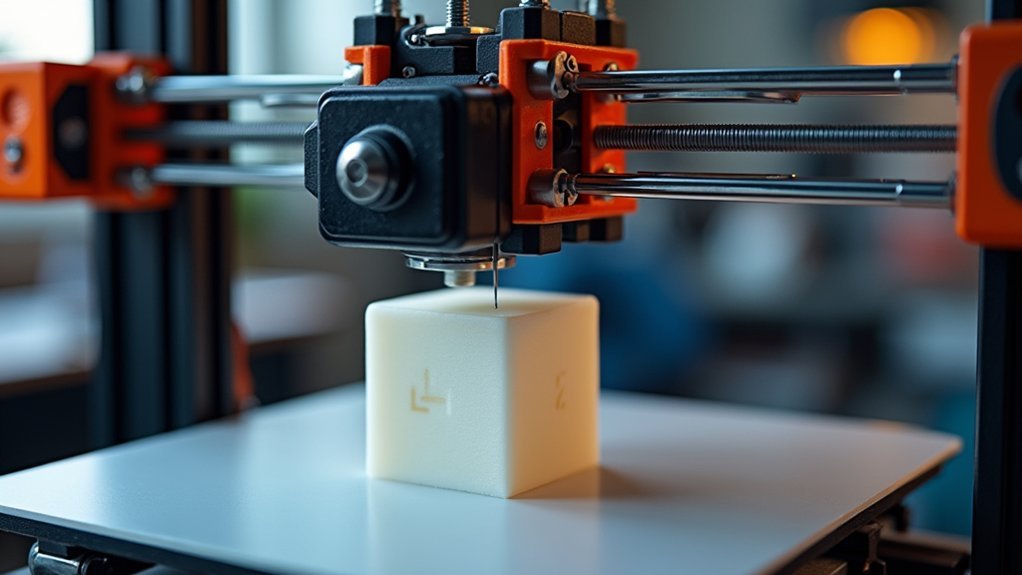
You’ll need to configure your firmware by setting dual Z-steppers in Configuration_adv.h, repurposing the second extruder driver as Z2, and enabling Z Stepper Auto Align. Make certain your lead screws are perfectly vertical and mechanically aligned before running calibration. Use G28 to home all axes, then execute G32 or G34 commands with probe points positioned near each leadscrew. The firmware automatically adjusts motor positions until deviation falls below tolerance, creating a perfectly level bed that’ll transform your printing results.
Firmware Configuration and Command Setup for Dual Z Motors
Before you can achieve proper dual Z-axis bed leveling, you’ll need to configure your firmware to recognize and control both Z motors independently.
In Marlin firmware, uncomment and set `number_of_Z_steppers` to 2 in Configuration_adv.h. Define your stepper driver types (like TMC2209) for both Z1 and Z2, ensuring matching current and microstepping parameters.
Enable the Z Stepper Auto Align feature to synchronize motor movements and prevent gantry skew. You’ll typically repurpose the second extruder driver as your Z2 stepper driver. Install the stepper driver in the E1 slot with proper UART pin jumper placement for communication.
For RepRapFirmware users, configure dual endstops using `M574 Z1 S1 P”zstop+e1stop”` and define motor positions with the `M671` command.
After making these changes, compile and flash your firmware to activate dual Z functions.
Mechanical Preparation and Hardware Alignment Requirements
Before configuring firmware commands, you’ll need to guarantee your dual Z-axis hardware is mechanically sound and properly aligned.
Start by checking that both lead screws are perfectly vertical and securely mounted, then verify your Z motors sit flush in their brackets without any play or wobble.
Pay special attention to the coupler connections between motors and lead screws, as improper gaps or loose fittings will cause inconsistent bed movement that no amount of software calibration can fix. Each Z motor must connect to a separate stepper motor output on the Duet board to enable independent control during the leveling process.
Lead Screw Alignment
Three critical components determine successful dual Z-axis calibration: perfectly vertical lead screws, precise coupler alignment, and a rigid frame foundation.
Start by ensuring your lead screws are perfectly vertical. Measure gaps on both sides using feeler gauges—equal spacing confirms proper alignment and prevents wobble. Clean your lead screws and apply light PTFE-based lubrication, avoiding over-application that attracts dust.
| Alignment Check | Tool Required | Target Result |
|---|---|---|
| Lead Screw Verticality | Carpenter’s Level | Perfect 90° angle |
| Coupler Gaps | Feeler Gauge | Equal spacing both sides |
| Frame Squareness | Measuring Tape | Identical diagonal measurements |
Insert lead screws into couplers with minimal play, then loosen couplers to allow proper seating. If misalignment occurs, shim your motor mounts for precise fit. Fix all components to the base before making final adjustments to ensure maximum stability during calibration. Tighten all set screws securely before proceeding to calibration.
Motor Mount Positioning
Proper motor mount positioning forms the mechanical foundation that determines whether your dual Z-axis system operates smoothly or suffers from binding and premature wear.
You’ll need to secure each stepper motor to the frame ensuring mounts align with designated mounting points. Position motor mounts symmetrically on both sides of the dual Z-axis gantry for even support and movement balance.
Before mounting, clean motor surfaces and bracket contact points to enhance grip. Use M4 bolts (minimum 10mm length) with lock washers to prevent loosening from vibrations. Configure proper torque settings during installation to ensure optimal stepper motor performance and prevent missed steps.
Position motors so shafts align coaxially with lead screws, maintaining a small gap between shaft and coupling to prevent binding.
After mounting, manually rotate motors to verify smooth, bind-free movement and check for proper perpendicularity using calipers.
Coupler Gap Configuration
While motor mounts provide the structural foundation, coupler gap configuration determines how effectively torque transfers from your stepper motors to the lead screws in your dual Z-axis system.
You’ll need to clean all mating surfaces thoroughly, removing debris and oil that could interfere with proper coupling. Check your lead screws and motor shafts for straightness—any bends will cause binding issues.
Install couplers with slight axial offset to accommodate thermal expansion during printing. Align motor shaft and lead screw axes concentrically before tightening screws.
Maintain parallelism between both lead screws and your printer frame to minimize lateral forces. Use flexible or helical couplers if you can’t eliminate minor misalignments completely. Flexible couplers are particularly effective at reducing Z banding artifacts that can appear in your finished prints.
After installation, manually rotate lead screws to verify smooth operation without binding.
Probing Strategy and G-Code Commands for Calibration
Two fundamental approaches define successful dual Z-axis calibration: strategic probe placement and precise G-code execution.
Strategic probe positioning combined with methodical G-code sequences forms the foundation of reliable dual Z-axis calibration success.
You’ll need to position your probe points near each leadscrew location to accurately detect bed tilt between motors.
Follow this calibration sequence:
- Home all axes with G28 to establish coordinate reference points
- Deploy your probe using M401, then execute G30 at the first leadscrew position
- Probe the second point with G30 near the opposite leadscrew, adding S2 parameter to trigger auto-calibration
- Run iterative cycles using G32 or G34 commands until deviation falls below your tolerance threshold
Your firmware will calculate tilt corrections using least squares minimization.
After calibration, re-home your Z-axis to account for any shifts in your zero position. The calibration process requires adjusting Z height stoppers on your printer frame if you’ve switched to thicker build surfaces that exceed your existing height clearance.
Firmware-Level Adjustments and Parameter Tuning
Beyond executing the correct G-code sequence, your firmware configuration determines how effectively your dual Z-axis system maintains bed levelness over time.
You’ll need to tune stepper motor currents and microstepping settings to guarantee synchronized movement without mechanical strain. Set probe offsets and trigger heights accurately for consistent bed surface readings.
Configure multiple probing points near each leadscrew using proper distribution to capture tilt effectively. Your M671 command must define accurate leadscrew coordinates, while G32 triggers the calibration routine that uses least squares algorithms to minimize height errors.
For systems with three or four Z motors, firmware compensates both tilt axes and twist simultaneously. Monitor diagnostic messages showing leadscrew adjustments and deviation values to verify calibration accuracy and identify potential mechanical issues.
Continuous leadscrew adjustments between calibration attempts indicate the system hasn’t achieved stable leveling and requires further mechanical or firmware troubleshooting.
Troubleshooting Common Dual Z-Axis Issues
When your dual Z-axis system isn’t performing correctly, you’ll typically encounter three main problems that can derail your bed leveling efforts.
Z-axis binding occurs when lead screws aren’t properly aligned or have accumulated debris, causing jerky movement that throws off calibration.
You’ll also face uneven gantry sagging when one motor falls behind the other, and motor skipping issues that prevent synchronized movement between both Z-motors. Additionally, belt-driven gearbox systems can introduce backlash that affects precise positioning during bed leveling operations.
Z-Axis Binding Problems
Z-axis binding represents one of the most frustrating challenges you’ll encounter with dual Z-axis systems, as it directly compromises print quality through layer inconsistencies and dimensional inaccuracies.
When your lead screws accumulate dirt and debris, lack proper lubrication, or become misaligned, you’ll notice visible ribbing, banding, and layer height variations on your prints. These binding issues can manifest as squished layers where excess plastic cannot be properly extruded, resulting in compressed layers and models that print shorter than their intended height.
To resolve binding issues effectively:
- Clean your lead screws regularly with a brush to remove dust and filament particles that increase friction.
- Apply appropriate lubrication to lead screws and nut interfaces to minimize resistance during movement.
- Check lead screw straightness and replace any bent or damaged components immediately.
- Verify perpendicular alignment of lead screws relative to your gantry and tighten all mounting hardware.
These steps will restore smooth Z-axis operation and improve your print quality considerably.
Uneven Gantry Sagging
Although gantry sagging often appears as a gradual issue, it can severely compromise your dual Z-axis system’s performance by creating uneven bed leveling and persistent print quality problems.
You’ll notice sagging when your gantry brackets aren’t properly mounted on rails, creating uneven load distribution. Loose screws on your X extrusion’s motor bracket connection also cause instability.
Check your lead screw alignment first—misalignment creates resistance that causes one side to sag more than the other.
Loosen your brass coupler screws about 1.5–2 turns to allow flexibility and prevent binding.
Tighten all gantry bracket screws properly, and consider adding eccentric nut adjusters on your non-driven side for additional support. Ensure steppers are engaged during any adjustments to maintain position and prevent the gantry from shifting.
This prevents the squished layers and calibration difficulties that plague sagging gantries.
Motor Skipping Issues
Motor skipping disrupts your dual Z-axis system’s synchronized movement, creating layer inconsistencies and failed prints that’ll frustrate your calibration efforts.
When steppers can’t maintain proper torque, you’ll notice squished layers, ribbing, or complete print failures.
Address motor skipping through these critical checks:
- Verify mechanical alignment – Ascertain lead screws are perfectly vertical and motor mounts aren’t bent or loose.
- Check electrical connections – Tighten all stepper wires and inspect for damaged connectors.
- Adjust driver voltage – Increase voltage slightly while monitoring motor temperature to boost torque.
- Eliminate binding sources – Remove debris from lead screws and nuts, then lubricate moving parts.
Test your gantry’s manual movement after each adjustment. Smooth operation without resistance indicates you’ve resolved the underlying mechanical or electrical issues causing step loss. The dual stepper configuration provides increased lifting power that helps prevent motor skipping under heavier print loads.
Optimal Calibration Workflow and Best Practices
When calibrating dual Z-axis systems, following a systematic workflow guarantees consistent results and prevents common pitfalls that can compromise bed leveling accuracy.
Start by homing X and Y axes first, then Z centrally to establish your reference plane. Use G28 for consistency and clear any existing bed compensation transforms with M561 before beginning.
Run your firmware’s calibration command (G32 for RepRapFirmware or G34 for Klipper) to automatically probe and adjust motors. Set iteration limits of 3-5 cycles with 0.01mm tolerance to prevent over-correction. Probe strategically near each leadscrew to capture local variations.
After mechanical leveling, apply mesh bed compensation with G29 for surface irregularities. Track the step counts between stepper_z and stepper_z1 during the homing process to ensure accurate distance measurements for trigonometric calculations.
Integrate these commands into your startup routine for automated calibration. Regular mechanical maintenance and backlash elimination enhance long-term stability.
Frequently Asked Questions
Can I Retrofit Dual Z Motors to My Existing Single Z Printer?
You can retrofit dual Z motors to your single Z printer, but you’ll need compatible firmware, additional stepper drivers or repurposed outputs, proper wiring, and mechanical modifications for successful installation.
How Often Should I Run Dual Z Calibration During Regular Printing Sessions?
You shouldn’t run dual Z calibration every print session. Calibrate every 20-30 prints or when you notice quality issues like poor layer adhesion, unless your firmware compensates automatically.
Will Dual Z Calibration Work With Different Stepper Motor Brands or Specifications?
You can use different stepper motor brands for dual Z calibration, but you’ll need to configure each motor’s firmware parameters individually, matching step angles, current settings, and electrical characteristics for proper synchronization.
Can I Use Dual Z Calibration With Flexible Beds or Glass Surfaces?
You can use dual Z calibration with both flexible beds and glass surfaces. Flexible beds need proper mounting and may require mesh leveling compensation, while rigid glass plates work excellently with minimal adjustment needed.
What’s the Maximum Bed Size That Benefits From Dual Z Motor Setup?
You’ll benefit from dual Z motors starting around 300mm bed width, with significant advantages at 350mm+. Beyond 400mm beds, dual Z becomes critical for preventing sag and maintaining consistent nozzle-to-bed distance across large spans.