You’ve got seven powerful options to rescue your damaged STL files. Meshmixer offers free automatic repairs, while Netfabb delivers professional-grade analysis tools. MeshLab handles complex mesh processing as open-source software, and Blender provides versatile modeling capabilities. Microsoft 3D Builder gives Windows users instant repair access, Magics excels at industrial-strength fixes, and Sculptris combines artistic sculpting with basic repair functions. Each tool targets different skill levels and project requirements to transform your broken meshes into print-ready perfection.
Meshmixer: Free Autodesk Tool for Automatic Mesh Repair
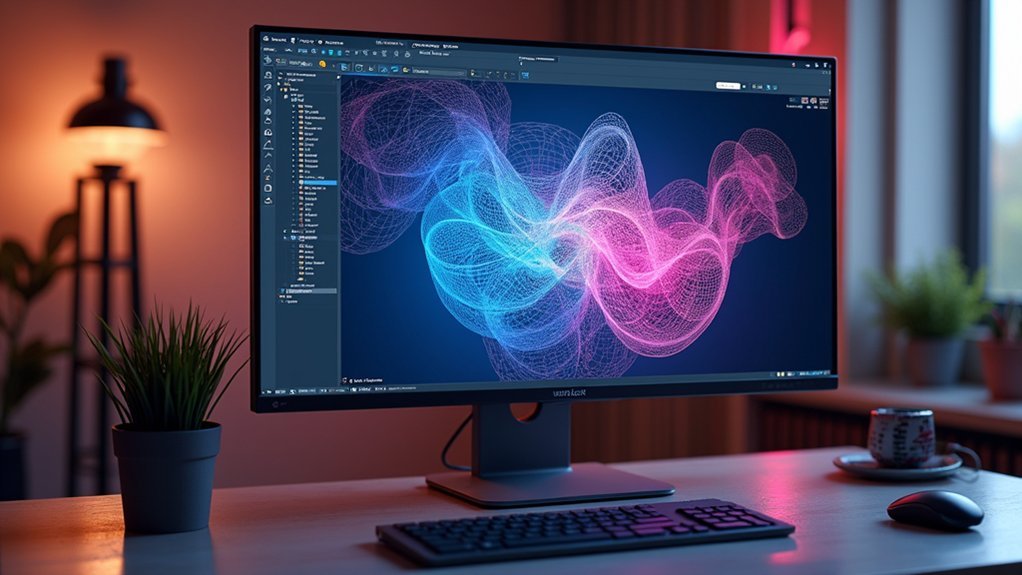
When you’re dealing with problematic STL files that refuse to print correctly, Meshmixer stands out as Autodesk’s free solution for automatic mesh repair.
This user-friendly software simplifies editing STL files through its intelligent repair functions that automatically detect and fix common issues like holes, non-manifold edges, and separate shells.
You’ll find the Inspector tool within the Analysis menu particularly valuable, as it visually highlights problem areas in your mesh.
Beyond basic repairs, Meshmixer offers advanced editing capabilities including scaling, rotating, and combining meshes. These software tools make it accessible whether you’re a beginner or experienced user.
Once you’ve completed your mesh repair work, you can export files directly for 3D printing, creating a seamless workflow from problematic model to print-ready file.
Netfabb: Professional-Grade STL Analysis and Repair Platform
While Meshmixer excels at basic repairs, Netfabb takes STL mesh repair to the professional level with Autodesk’s extensive analysis and repair platform.
You’ll find thorough repair functions that automatically identify and fix mesh errors like holes and non-manifold geometries. The software’s advanced STL repair tools include wall thickness analysis, helping you optimize structural integrity before 3D printing.
Netfabb’s user-friendly interface accommodates both beginners and experienced engineers, making professional-grade mesh repair accessible to all skill levels.
You can efficiently save your repaired files directly for 3D printing, creating a streamlined workflow from analysis to production.
When you need robust mesh repair capabilities beyond basic tools, Netfabb delivers the professional precision required for complex 3D printing projects.
MeshLab: Advanced Open-Source Mesh Processing Software

Although Netfabb provides professional-grade solutions, MeshLab delivers equally powerful mesh repair capabilities through its free and open-source platform designed for advanced mesh processing.
You’ll access extensive mesh editing tools that enable you to analyze, clean, and repair STL files effectively. The software excels at handling complex mesh issues, letting you perform simplification, smoothing, and non-manifold geometry repairs to guarantee your files are 3D printing-ready.
You can efficiently process large, high-polygon models without performance concerns. MeshLab’s tools for repairing STL files include advanced remeshing capabilities that address various structural problems.
While you can’t create STL files from scratch, you’ll find excellent functionality for merging and manipulating existing models, making it an invaluable resource for professionals requiring sophisticated repair STL solutions.
Blender: Versatile 3D Modeling Suite With Repair Capabilities
You’ll find Blender’s advanced mesh repair tools exceptionally powerful for fixing complex STL issues, from recalculating normals to performing Boolean operations on non-manifold geometries.
The software’s steep learning curve can initially challenge you, but its thorough remeshing capabilities and surface smoothing tools make it worthwhile for serious repair work.
Once you’ve completed your repairs, you can easily export STL files that are optimized and ready for 3D printing.
Advanced Mesh Repair Tools
When you need extensive mesh repair capabilities beyond basic automated tools, Blender stands out as a versatile open-source 3D modeling suite that handles complex STL file issues with precision.
These advanced mesh repair tools include functions for recalculating normals, merging overlapping geometries, and performing Boolean operations that fix intricate mesh errors other software can’t resolve.
You’ll find Blender’s repair function seamlessly integrated with thorough editing tools, making it an exceptional STL editor for detailed mesh optimization.
While the learning curve’s steeper than simpler alternatives, you’ll benefit from extensive online tutorials and community support.
The software’s ability to import and export STL files ensures smooth integration into your 3D printing workflow once repairs are completed.
Steep Learning Curve
The complexity of Blender’s interface can initially overwhelm newcomers who expect straightforward mesh repair tools like those found in dedicated STL repair software.
You’ll encounter countless menus, modifiers, and functions that extend far beyond basic STL repair needs. This extensive toolkit creates a significant learning curve that requires substantial time investment to navigate effectively.
However, you shouldn’t let this complexity discourage you from exploring Blender’s capabilities. The software’s thorough 3D modeling features ultimately provide more flexibility than specialized repair tools.
You’ll find that mastering essential functions like mesh cleanup, Boolean operations, and remeshing pays dividends for complex repair tasks. While the initial learning phase demands patience, Blender’s active community offers extensive tutorials and documentation to accelerate your progress toward proficient 3D modeling and repair skills.
Export STL Files
Once you’ve completed your repairs in Blender, exporting clean STL files becomes a straightforward process that preserves all your mesh corrections.
You’ll find Blender’s direct export functionality eliminates the need for additional conversion software, streamlining your workflow from repair to print preparation.
When you’re ready to export STL files, simply navigate to File > Export > STL to access detailed export settings. You can adjust scale, apply modifiers, and select specific objects for export.
This makes Blender one of the best STL repair software options available, especially considering its cost-free nature.
The ability to edit STL files and export them seamlessly positions Blender as an excellent choice for repairing STL files while maintaining complete control over your 3D printing pipeline.
Microsoft 3D Builder: Beginner-Friendly Windows STL Repair Tool
You’ll find Microsoft 3D Builder already installed on your Windows 10 system, eliminating the need to download additional software for basic STL repairs.
The application’s automatic repair features can quickly scan your models and fix common mesh issues like holes and non-manifold edges with just a few clicks.
This seamless Windows integration makes it an ideal starting point for beginners who want to repair STL files without learning complex 3D modeling workflows.
Windows 10 Integration
Since Microsoft 3D Builder comes pre-installed on Windows 10, you’ll have immediate access to a beginner-friendly STL repair tool without downloading additional software.
This free 3D sculpting tool integrates seamlessly into your Windows environment, appearing in your Start menu and ready for immediate use.
You can open STL files directly through File Explorer by right-clicking and selecting “Edit with 3D Builder.” The application launches quickly and displays your model instantly.
Microsoft 3D Builder’s tight Windows integration means you won’t struggle with compatibility issues or complex installations.
The software automatically detects mesh problems upon file import and prompts you to repair them.
You’ll appreciate how smoothly it works within Windows 10’s ecosystem, making STL repair accessible to anyone.
Automatic Repair Features
Microsoft 3D Builder’s automatic repair features eliminate the guesswork from fixing corrupted STL files.
You’ll find these tools incredibly effective at resolving common mesh problems without requiring technical expertise. The software automatically detects and fixes holes, non-manifold edges, and other structural issues that could prevent successful 3D printing.
When you load your STL file, the automatic repair system instantly analyzes the mesh and identifies problem areas. You can then apply fixes with a single click, making STL file repair accessible even if you’re new to 3D modeling.
The process runs quickly in the background, allowing you to preview changes in real-time. This streamlined approach guarantees your files are print-ready without manual intervention, greatly reducing preparation time for your 3D printing projects.
Magics: Industrial-Strength Mesh Repair and Optimization Software
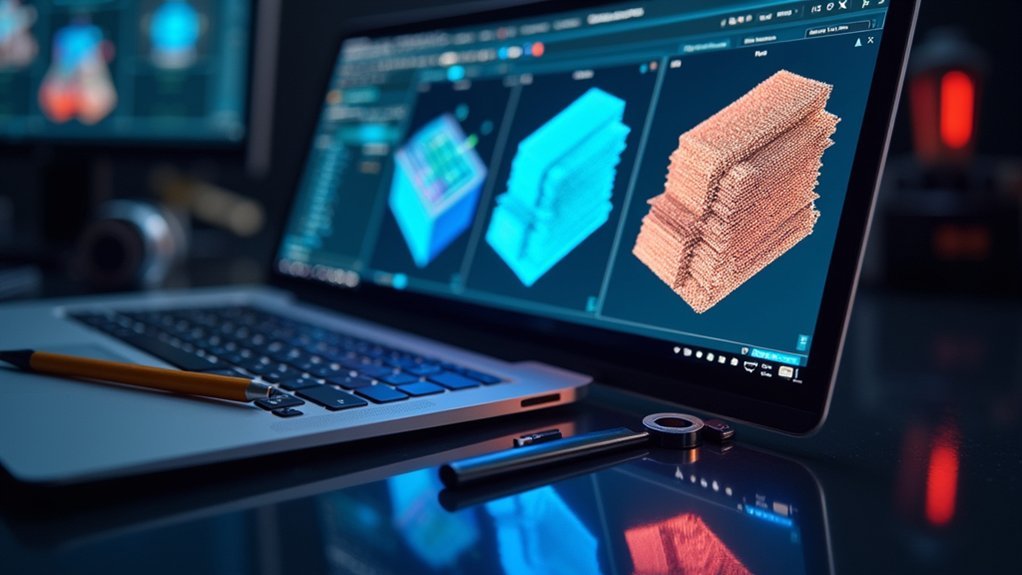
When you need industrial-grade mesh repair capabilities that go beyond basic fixes, Magics stands out as a thorough solution designed specifically for professional manufacturing environments.
This advanced STL repair software delivers extensive functionalities that make it one of the best software repair tools available for complex 3D models.
You’ll benefit from Magics’ Fix Wizard, which automatically identifies and corrects common mesh errors while streamlining your repair workflow. The software supports multiple file formats, allowing seamless CAD file imports before 3D printing preparation.
You can perform precise manual repairs, including creating and deleting triangles for exact mesh control.
Magics excels in wall thickness analysis and Boolean operations for mesh optimization, making it ideal for engineers and manufacturers requiring high-quality, print-ready industrial models.
Sculptris: Intuitive Sculpting Tool With Basic Repair Functions
For artists and beginners seeking an approachable entry point into 3D mesh repair, Sculptris offers a unique combination of intuitive sculpting capabilities with essential repair functions. This free modeling software focuses on artistic creation rather than technical parametric design, giving you creative freedom while addressing mesh imperfections.
| Feature | Capability |
|---|---|
| Mesh Detection | Identifies common errors |
| Smoothing Tools | Enhances surface quality |
| Repair Functions | Fixes basic mesh issues |
| Export Options | Multiple format support |
| User Interface | Beginner-friendly design |
You’ll find Sculptris particularly effective for preparing artistic models for 3D printing. The software’s smoothing tools help refine your repaired file, while basic repair functions guarantee your mesh meets printing requirements. Once you’ve addressed imperfections, you can export files in STL format ready for production.
Frequently Asked Questions
What Is the Best STL Repair Software?
You’ll find Meshmixer’s the best overall choice for STL repair since it’s user-friendly with powerful automatic fixes. If you’re advanced, Blender’s extensive capabilities can’t be beaten for complex repairs.
Which Tool Is Commonly Used to Detect and Repair STL File Errors Such as Holes, Non-Manifold Edges, and Inverted Normals?
You’ll find Meshmixer’s the most commonly used tool for detecting and repairing STL errors like holes, non-manifold edges, and inverted normals because it’s free, user-friendly, and offers reliable automatic repair functions.
What Is the Best Software to Make STL Files?
You’ll want Blender for creating STL files from scratch since it’s free, versatile, and offers extensive modeling capabilities, though it requires time investment to master its complex interface.
What Is the Best Program to Merge STL Files?
You’ll find Meshmixer’s your best choice for merging STL files. It’s got a user-friendly interface with built-in Boolean Union tools that’ll combine multiple meshes easily without requiring advanced technical skills.