For successful multi-color vase mode printing, you’ll need a 0.6mm or larger nozzle to improve material flow and prevent clogs during filament changes. Set your layer height to 0.2mm and reduce print speed to 30mm/s for clean color boundaries. Plan your color changes at natural design shifts, disable cooling fans for better adhesion, and clean your nozzle thoroughly between swaps to prevent bleeding. These foundational techniques reveal the full potential of gradient vase printing.
Selecting the Right Nozzle Size for Multi-Color Vase Prints
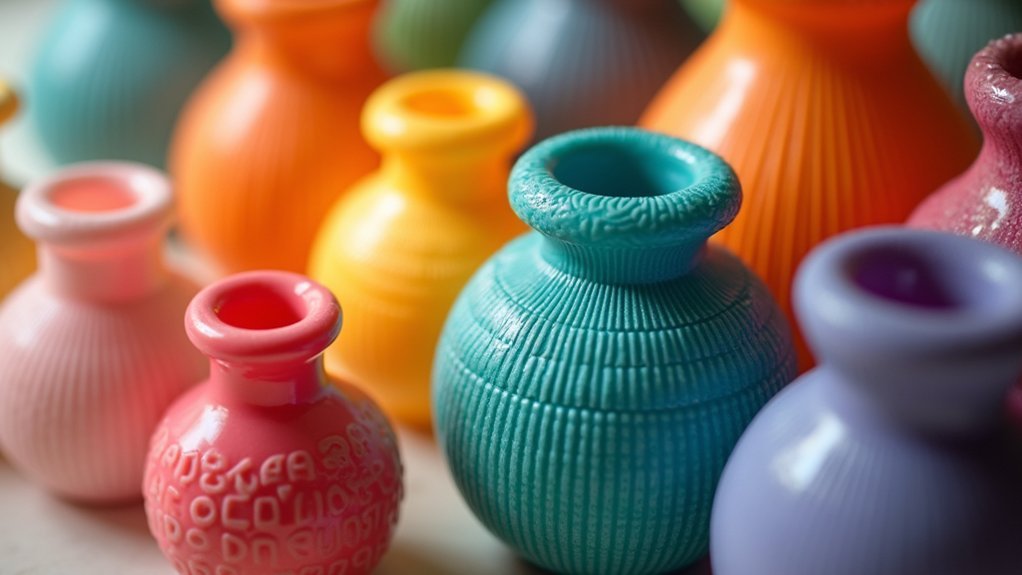
When you’re tackling multi-color vase prints, your nozzle size becomes a critical factor that’ll make or break your project’s success. Choose a larger 0.6mm or 0.8mm nozzle size to enhance strength and improve filament flow during color shifts. This prevents clogs that commonly occur when switching between multiple materials.
A standard 0.4mm nozzle will limit your wall thickness and overall strength, potentially causing under-extrusion in intricate multi-color patterns. If you’re stuck using a 0.4mm nozzle, adjust your extrusion multiplier to manage line width effectively, ensuring colors mix properly without compromising structural integrity.
Target thicker walls of at least 0.8mm to boost stability in vase mode’s single-wall construction, delivering both stunning visual appeal and lasting durability for your multi-color creations.
Optimizing Layer Height for Smooth Color Transitions
While nozzle selection sets your foundation, layer height determines how seamlessly your colors blend together in multi-color vase prints.
Start with 0.2 mm layer heights for the ideal balance between print quality and speed. This setting provides smooth color changes without sacrificing structural integrity.
The 0.2 mm layer height sweet spot delivers professional-quality color transitions while maintaining efficient print speeds for multi-color vase projects.
Consider using adaptive layer height settings that automatically adjust thickness based on your print’s geometry. This feature enhances visual smoothness where changes occur.
Don’t forget to match your nozzle temperature to each filament type—incorrect temperatures cause color bleeding that disrupts clean boundaries.
Slow your print speed to around 30 mm/s for better layer adhesion.
Run test prints with different layer heights to find your perfect setting for seamless color changes.
Calibrating Extrusion Settings for Consistent Wall Thickness
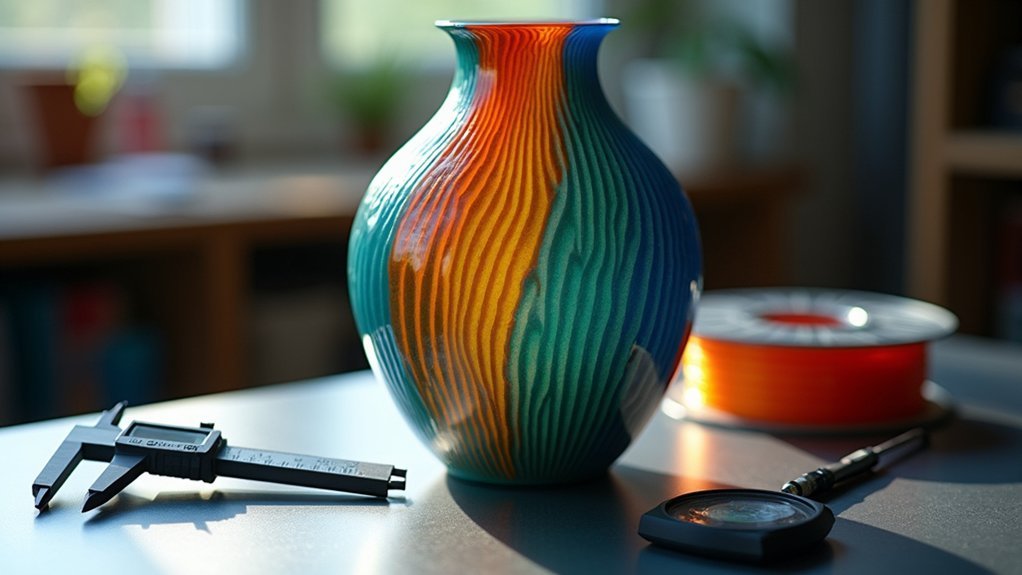
Three critical settings determine whether your multi-color vase prints achieve uniform wall thickness: extrusion multiplier, flow rate, and nozzle size.
Calibrating extrusion settings for consistent wall thickness requires systematic adjustments tailored to your specific filament and printer combination.
Start with these essential calibration steps:
- Switch to larger nozzles – Use 0.6mm or 0.8mm nozzles instead of standard 0.4mm for improved material flow and structural strength.
- Adjust extrusion multiplier – Fine-tune settings based on your filament type and brand for ideal material deposition.
- Disable cooling fans – Improve layer adhesion and maintain consistent thickness, especially with slower-cooling materials.
- Conduct spiral tests – Print small test spirals to perfect layer height and extrusion settings.
Regularly calibrate your printer’s flow rate and pressure advance settings when switching filaments to guarantee proper material adhesion.
Planning Color Changes and Filament Swapping Strategies
When you’re planning multi-color prints, you’ll need to master the art of strategic filament change timing to achieve clean shifts between colors.
You can either rely on your slicer’s automated layer-based swapping or take control with manual pause techniques at precise moments during the print.
The key is understanding exactly when and how to execute these swaps without compromising print quality or creating visible defects.
Strategic Filament Change Timing
Strategic filament changes can make or break your multi-color 3D prints, transforming ordinary designs into stunning visual masterpieces when executed properly.
Strategic filament change timing requires careful planning to achieve seamless shifts that enhance your design’s visual appeal.
Here are four essential timing strategies for ideal results:
- Identify key Z-heights where color shifts naturally complement your design geometry.
- Set automated triggers in your slicer to maintain consistent layer adhesion during swaps.
- Plan slight color overlaps at shift points to create smooth visual blending effects.
- Use design mock-ups with color wheels to determine the most appealing sequence.
You’ll need to monitor your filament feed closely during swaps to prevent under-extrusion or clogs.
Consider adjusting nozzle sizes and print speeds accordingly—larger nozzles typically require slower speeds for proper material flow.
Manual Swap Techniques
Manual filament swaps give you complete control over your color changes, allowing for precise timing that automated systems can’t match.
Before starting your spiral vase mode print, sketch out your design layers and plan exactly where each color shift will occur. Set up strategic pause points at designated heights where you’ll execute your manual swap techniques.
Keep your filaments organized with clips and holders to prevent tangling during swaps. Always adjust temperature settings for each new material before making the change, as different filaments require specific temperatures for proper flow and adhesion.
Start practicing these manual swap techniques on simple models first. This approach lets you perfect your timing and process, ensuring seamless color shifts in your final vase prints.
Preventing Color Bleeding Between Layers

Color bleeding between layers can turn your multi-color 3D prints into muddy, unprofessional-looking disasters, but you can prevent this issue with proper technique and settings adjustments.
Here are four essential strategies to maintain clean color shifts:
- Clean your nozzle thoroughly between filament changes to eliminate residual material that causes color mixing.
- Use a 0.6mm or larger nozzle for better extrusion control and cleaner color shifts.
- Configure retraction settings properly to minimize oozing during color changes.
- Lower print speeds during layer shifts, giving each color time to settle without mixing.
Additionally, implement cooldown pauses between color changes in your slicing software. This allows the previous layer to solidify completely, greatly reducing bleeding risks and ensuring crisp, professional-looking multi-color prints.
Choosing Compatible Filament Types for Multi-Color Projects
When you’re planning multi-color vase mode projects, you’ll need to match material properties between your chosen filaments to guarantee consistent layer adhesion and print quality.
Your filaments must have compatible temperature requirements – mixing PLA with ABS, for example, creates extrusion problems since they heat at different temperatures.
You should also verify that flow rates align between materials, as mismatched viscosities lead to under-extrusion or over-extrusion during color shifts.
Material Property Matching
While multi-color 3D printing opens up exciting creative possibilities, you’ll need to carefully match filament properties to achieve successful results.
Material property matching guarantees your layers bond properly and maintain structural integrity throughout the printing process.
Focus on these critical compatibility factors:
- Temperature requirements – Verify printing and bed temperatures align between filaments to prevent warping or poor adhesion.
- Thermal expansion rates – Choose materials with similar expansion properties to avoid layer separation during cooling.
- Flow characteristics – Match viscosity and extrusion rates to maintain consistent layer heights across color changes.
- Chemical composition – Select filaments from the same family (PLA with PLA, PETG with PETG) for best bonding.
Always conduct small test prints before committing to larger projects to verify compatibility.
Temperature Compatibility Requirements
Once you’ve identified materials from the same family, you’ll need to dive deeper into their specific temperature compatibility requirements to guarantee seamless multi-color printing.
PLA, PETG, and ASA work exceptionally well together since they share similar extrusion temperatures between 180°C and 260°C, enabling smooth color changes without warping or poor layer adhesion.
However, don’t assume all variants within a material type perform identically. Silk PLA often requires different temperature settings than standard PLA, potentially affecting print quality.
You should run temperature towers for each filament before starting your project to determine ideal settings that maintain both structural integrity and color vibrancy.
Always check manufacturer specifications, as composition variations can create unexpected melting point differences that’ll compromise your multi-color print’s success.
Managing Print Speed for Clean Color Boundaries
Although achieving vibrant multi-color prints might tempt you to rush the process, managing your print speed is essential for maintaining clean boundaries between different filaments.
Slowing down your print speed to around 30mm/s noticeably improves layer adhesion and minimizes color blurring at changes.
To optimize your multi-color vase mode results:
- Reduce print speed to 30mm/s for enhanced precision and cleaner color separation
- Use larger nozzle sizes (0.6mm or 0.8mm) to improve extrusion consistency and create sharper edges
- Implement slight pauses during color changes to allow proper cooling and solidification
- Adjust retraction settings to prevent oozing that causes unwanted color mixing
Monitor flow rates for each filament type, as varying characteristics directly impact color boundary clarity during printing.
Designing Multi-Part Models for Seamless Assembly
When you’re designing multi-part models for seamless assembly, you’ll need to master zero gap assembly techniques that guarantee parts fit together perfectly without binding or excessive looseness.
Your CAD scaling and dimensioning must be precise, typically maintaining 0.1 to 0.2 mm clearance gaps between mating surfaces while using software like Onshape to create accurate sketches with no overlap.
You’ll also want to establish an efficient 3MF export workflow that allows you to export all components simultaneously while maintaining proper part identification and organization for your slicing software.
Zero Gap Assembly Techniques
Creating multi-part models that assemble seamlessly requires precise planning during the design phase to avoid printing mishaps and achieve professional results.
Zero gap assembly techniques demand meticulous attention to clearances and dimensional accuracy to guarantee perfect fits without forced connections.
When implementing zero gap assembly techniques, you’ll need to:
- Maintain 0.1 to 0.2 mm clearance gaps between mating surfaces to prevent material overlap during printing
- Use the “new” option in CAD instead of “add” to keep components as separate entities for easier assembly
- Sketch precise dimensions around your main design with 80 mil circle dimensions for proper scaling and alignment
- Export individual parts as 3MF files for efficient bulk management and streamlined assembly processes
Clean up overlapping segments in vector files before importing into CAD to prevent potential misalignments.
CAD Scaling and Dimensioning
Since CAD scaling and dimensioning form the foundation of successful multi-part assemblies, you’ll need to establish precise measurements from the earliest design stages.
Start by using the “new” option when creating parts in CAD to maintain accuracy and prevent unnecessary overlaps. Dimension your designs precisely—for instance, scale circular outlines to 80 mils to achieve exact sizing.
Before importing vector files, clean up overlapping segments to simplify sketching and improve your final print quality. Remember that each layer of your design affects assembly tolerances.
Export individual parts as a 3MF file for efficient bulk management and easier organization during multi-color printing. This systematic approach guarantees seamless assembly without compromising dimensional accuracy.
3MF Export Workflow
Mastering the 3MF export workflow transforms your multi-part printing process from chaotic file juggling into streamlined assembly production. Instead of wrestling with multiple STL files, you’ll export everything together for efficient organization and handling.
Your 3MF export workflow success depends on these critical steps:
- Dimension parts correctly in CAD with 0.1-0.2mm clearance gaps between objects for ideal fitting.
- Clean up overlapping segments in logos before exporting to prevent printing errors.
- Assign filaments using naming conventions to streamline slicing and synchronize multi-color printing.
- Use bulk export functions in the part studio tab to simplify complex multi-part workflows.
This approach guarantees precise component alignment during assembly while maintaining seamless integration throughout your entire printing process.
Temperature Control Techniques for Different Filaments
When you’re working with different 3D printing filaments, understanding temperature control becomes essential for achieving professional results.
You’ll need specific settings for each material: PLA performs best at 190-220°C, while ABS requires higher temperatures of 230-250°C. PETG falls somewhere between these ranges.
Run temperature towers to identify your filament’s sweet spot, as brand variations affect ideal settings. Check manufacturer recommendations, then fine-tune based on your printer’s characteristics.
For better layer adhesion, disable cooling fans during initial layers when printing PLA.
Temperature adjustments don’t just affect print quality—they influence multi-color aesthetics too. Different temperatures change filament flow and mixing properties, creating unique visual effects in your vase mode prints.
Master these temperature control techniques for consistently superior results.
Post-Processing Methods for Professional-Looking Results
After your prints finish, you’ll transform basic 3D objects into professional-grade pieces through strategic post-processing techniques.
These post-processing methods for professional-looking results can dramatically enhance your multi-color vase prints.
Start with these essential finishing steps:
- Sand the surface to smooth layer lines and create seamless color gradients.
- Apply heat gun treatment to fuse layers together and eliminate visible seams.
- Use clear coat or sealant to boost color vibrancy and add protective coverage.
- Consider resin dipping for achieving a glossy, professional-grade appearance.
You can also enhance specific details by painting with acrylics, adding depth to your design.
Each technique addresses different aspects of finishing, from eliminating layer lines to protecting against wear and moisture while maintaining your print’s visual appeal.
Frequently Asked Questions
How to 3D Print Things With Multiple Colors?
Design multi-part models with no clearance gaps in CAD software. Assign specific filaments to each part before slicing. Export as 3MF files. Use larger nozzles and experiment with layer heights for ideal color shifts.
How to Make Vase Mode Stronger?
You’ll strengthen vase mode prints by using larger nozzles like 0.8mm, printing thicker walls, disabling cooling fans initially, adjusting extrusion multipliers, and conducting temperature towers to optimize layer adhesion.
How to Print Multiple Objects in Vase Mode?
Set each object as a separate part in your slicer, activate Special Mode for vase printing, maintain 0.1-0.2mm gaps between objects, and consider each item’s size and complexity for successful printing.
How Much Filament Is Wasted on Multicolor Prints?
You’ll waste 5-10 grams of filament per color change in multicolor prints. You can minimize waste by adjusting purge settings, using larger nozzles, and designing with fewer color shifts whenever possible.